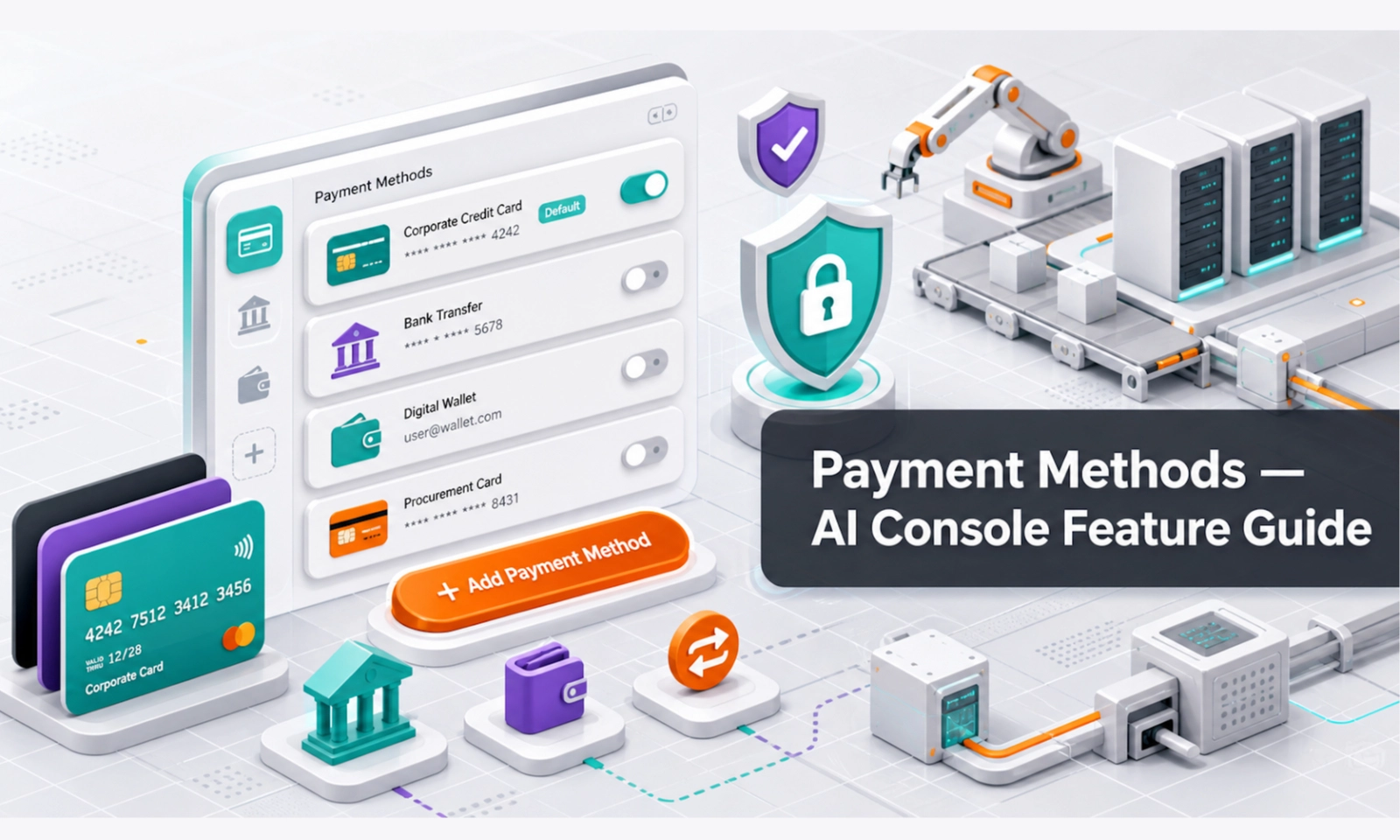
What Payment Methods does
Payment Methods lets account owners or billing users manage the payment option connected to the AI Console account. Depending on your plan and region, this may include saved card details, payment gateway setup, billing continuity, or payment status.
This feature matters because the AI Agent may be supporting live customer enquiries. A failed payment can affect account access, credits, or service continuity depending on your subscription terms.
Who should use this feature
Use Payment Methods if you are the account owner, finance user, billing admin, or authorised person responsible for company payments.
When to use it
Use this page when setting up the account, changing company cards, fixing a failed payment, updating an expired payment method, preparing for renewal, or checking whether billing is ready before a campaign launch.
Before you start
Make sure you are using an authorised company payment method. Do not share full card details, banking passwords, one-time passwords, or sensitive payment information through chat, email, or screenshots.
Prepare these details if needed:
- authorised payment method
- billing name
- billing email
- company billing address
- tax or registration details if required
- finance approver if your company requires approval
Step-by-step guide
- Open Payment Methods from the console menu.
- Check the current payment status.
- Add or update the payment method if required.
- Confirm that the billing name and billing email are correct.
- Save the payment method through the secure payment flow.
- Return to Billing and check whether the account status is active.
- Go to Invoices if you need to confirm whether a payment has been recorded.
- If a payment failed, update the payment method and retry only through the official console payment process.
What good looks like
A healthy payment setup should be current, authorised, and easy for your finance team to manage.
Good signs include:
- payment method is active
- billing email is correct
- expired cards or old payment methods are removed or replaced
- account status is active in Billing
- invoices show the correct payment status
- finance users know who owns payment updates
Example workflow
Your company card is expiring next month. The finance admin opens Payment Methods, updates the card through the secure payment process, checks Billing to confirm the subscription remains active, then downloads the next invoice after payment.
Common problems and what to check
Payment failed. Check whether the card has expired, the bank blocked the payment, the spending limit was reached, or billing details are incorrect.
Payment method cannot be added. Confirm that you have billing permission and that the payment information is entered through the official secure payment screen.
Account still shows unpaid after updating payment. Check Invoices and Billing. Payment status may need a short time to update, or the payment may need to be retried.
Wrong person receives billing emails. Update the billing email or account contact in Settings if available.
You are asked to send card details manually. Do not do this. Use only the secure payment method flow inside the console.
Best practices
Limit payment access to authorised users. Review payment methods before renewal dates. Keep billing contacts updated. Use company payment methods rather than personal cards where possible. Never share sensitive payment information outside the secure payment flow.
Done checklist
- Payment method is active.
- Billing contact details are correct.
- Expired payment methods are removed or replaced.
- Billing status has been checked.
- Finance users know where to find invoices.
- Sensitive payment details are not shared through unsafe channels.
Next recommended guide
Continue with Settings & Help to manage account preferences, support access, and general configuration.