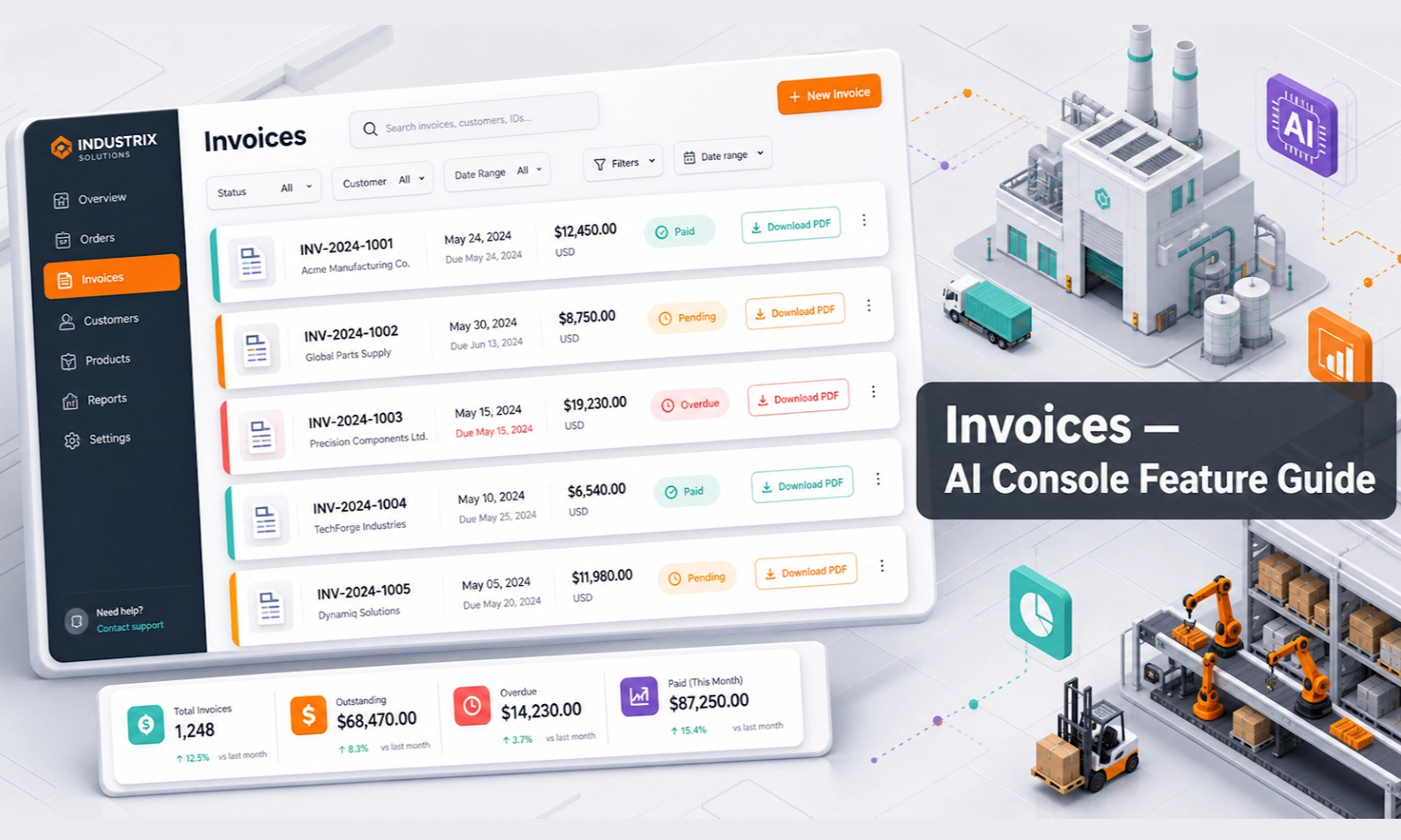
What Invoices does
Invoices stores billing documents related to your AI Console subscription, usage, credits, plan changes, or payment history depending on your account setup. It helps your finance or admin team access records without asking support every time.
Who should use this feature
Use Invoices if you are an account owner, finance user, admin, or manager responsible for payment records, receipts, accounting, or internal reporting.
When to use it
Use Invoices after a payment, before month-end closing, during finance reconciliation, when checking subscription charges, or when your company needs proof of payment.
Before you start
Make sure you have billing or finance permission in the console. Also prepare the month, payment date, invoice number, or transaction reference you want to check if available.
Step-by-step guide
- Open Invoices from the console menu.
- Review the invoice list or transaction history.
- Use filters if available, such as date, status, plan, or payment type.
- Open the invoice you want to check.
- Confirm the billing period, amount, payment status, and account details.
- Download the invoice or receipt if your finance team needs a copy.
- Save the file according to your company's finance process.
- If an invoice looks incorrect, compare it with Billing usage and Payment Methods before contacting support.
What good looks like
A well-managed invoice record should make finance checks easy.
Good signs include:
- invoices are visible in one place
- payment status is clear
- billing period is clear
- invoice amount matches expected subscription or usage
- finance users can download records without asking another team
- missing or failed payments can be identified quickly
Example workflow
Your finance team is preparing month-end records. They open Invoices, filter by the current month, download the subscription invoice, and save it to the company finance folder. If the amount is higher than expected, they check Billing usage before raising a question.
Common problems and what to check
Invoice is missing. Check whether payment has been completed and whether you selected the correct date range.
Payment status is unpaid or failed. Go to Payment Methods and confirm whether the saved payment method is active.
Invoice amount is higher than expected. Check Billing for plan changes, usage, credits, or upgrades.
You cannot download the invoice. Check your permission level or try again from an admin account.
Company details are wrong. Update account or billing details in Settings if the console supports it, then contact support if historical invoice correction is required.
Best practices
Download invoices monthly instead of waiting until year-end. Limit invoice access to finance and admin users. Keep company billing details current. Compare invoice records with Billing before assuming there is an error.
Done checklist
- You know where invoice records are stored.
- You can open and review an invoice.
- You can download invoices if your account allows it.
- You know how to check payment status.
- You know when to check Billing or Payment Methods for more detail.
Next recommended guide
Continue with Payment Methods so billing continuity is protected.