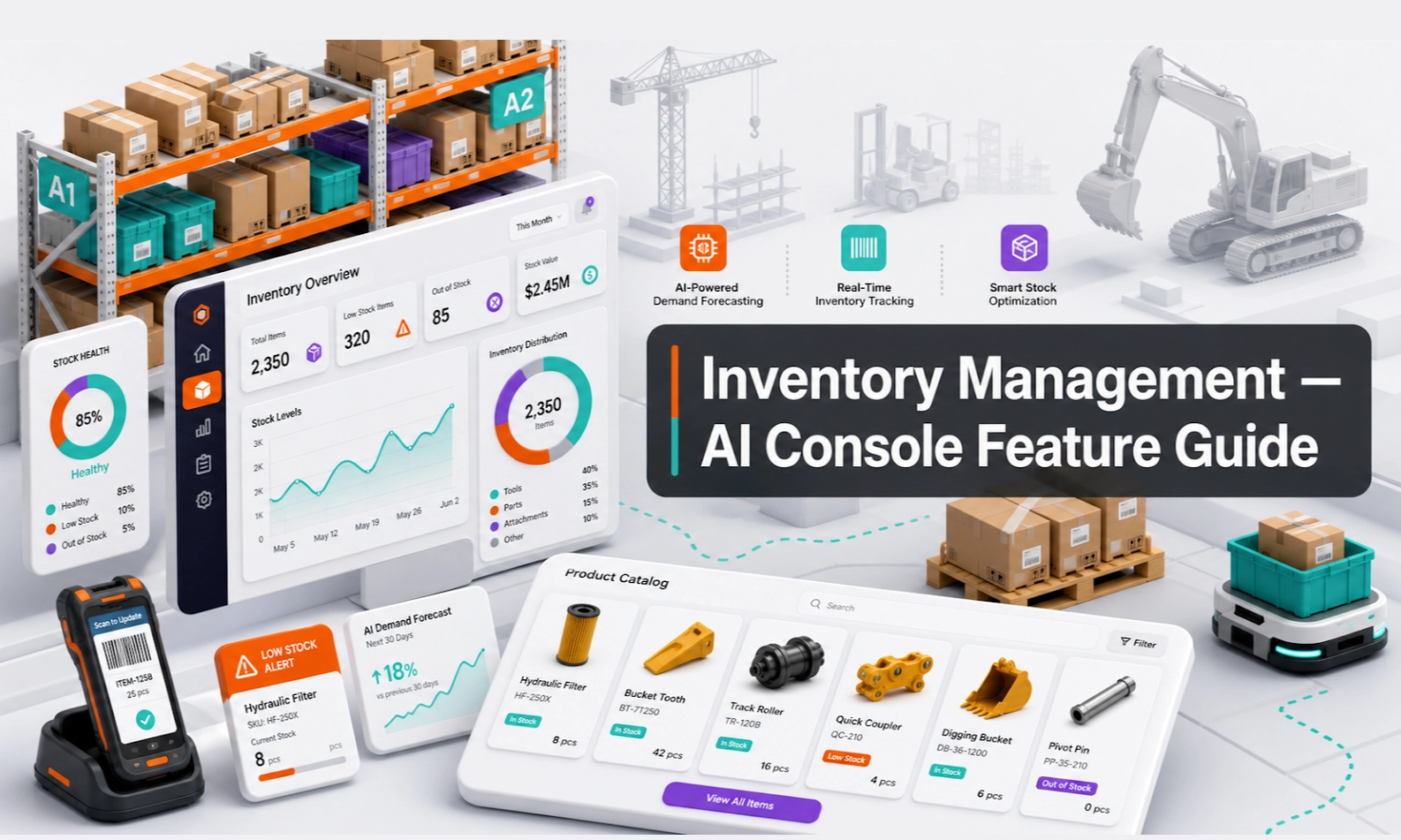
What Inventory Management does
Inventory Management is where your business manages the equipment, products, SKUs, parts, or services that customers may ask about. This information can support AI responses, lead qualification, product recommendations, and sales or rental follow-up.
For an AI webstore, this is one of the most important modules because customers usually ask about specific products, machine suitability, rental availability, stock, pricing, or delivery.
Who should use this feature
Use this feature if you are an admin, product manager, inventory controller, rental manager, sales manager, branch manager, or operations team member responsible for product data.
When to use it
Use Inventory Management during initial setup, when adding new products, when stock or availability changes, when pricing changes, or when the AI gives weak product-related answers.
Before you start
Prepare your inventory information in a clean format. Include the details your customers usually need before they can make a decision.
Useful fields may include:
- product or equipment name
- category
- model number or SKU
- brand
- key specifications
- rental or sale status
- branch or location
- availability status
- price or price note
- attachments or accessories
- images or brochures if supported
- common use cases
- restrictions or conditions
Step-by-step guide
- Open Inventory Management from the console menu.
- Choose whether to add a new product, edit an existing product, or import product records if the console supports upload.
- Enter the product name and category clearly.
- Add important specifications. For equipment, include capacity, size, height, power, fuel type, working range, or other decision-making details.
- Add availability or stock information if your workflow supports it.
- Add pricing guidance only if your business allows the AI to mention it. If final price needs approval, state that clearly.
- Add branch, location, delivery, or service-area details if relevant.
- Save the product record.
- Test the product in Playground by asking customer-style questions.
- Review live product enquiries in Conversations and improve the inventory record when customers are confused.
What good looks like
Good inventory data helps the AI ask better questions and guide customers to the right next step.
Good signs include:
- product names are clear and consistent
- categories are easy to understand
- key specs are complete
- unavailable or restricted items are marked clearly
- the AI does not confuse similar products
- sales staff receive enough product context during handover
Example workflow
Your company rents forklifts. You add records for 2-ton, 3-ton, and 5-ton forklifts, including lift height, fuel type, indoor or outdoor suitability, location, and rental status. When a customer asks for a forklift, the AI can ask for load weight, working height, aisle width, site location, and rental date before handing over to the rental team.
Common problems and what to check
The AI recommends the wrong product. Check whether product categories, specs, and use cases are clear. Similar products need clear differences.
The AI mentions unavailable stock. Update availability fields or add a rule that final stock confirmation must be handled by a human.
The AI cannot answer product questions. The product record may be incomplete. Add specs, FAQs, or supporting documents in Knowledge Base.
The AI gives pricing too confidently. Add a pricing rule in Agent Setup and include price notes in inventory records.
Products are hard to search. Standardise naming. Avoid multiple names for the same product unless you include common aliases.
Best practices
Keep product names consistent. Use the same category names across your catalogue. Add customer-friendly descriptions, not only internal codes. Mark outdated items clearly or remove them. Review high-demand products more often than rarely used products.
Done checklist
- Key products or equipment are added.
- Names, categories, and specs are clear.
- Availability or stock rules are defined.
- Pricing rules are clear.
- Product questions have been tested in Playground.
- Weak product answers from Conversations have been fixed.
Next recommended guide
Continue with Leads so the AI Agent can turn product and rental enquiries into follow-up opportunities for your team.