What Integrations does
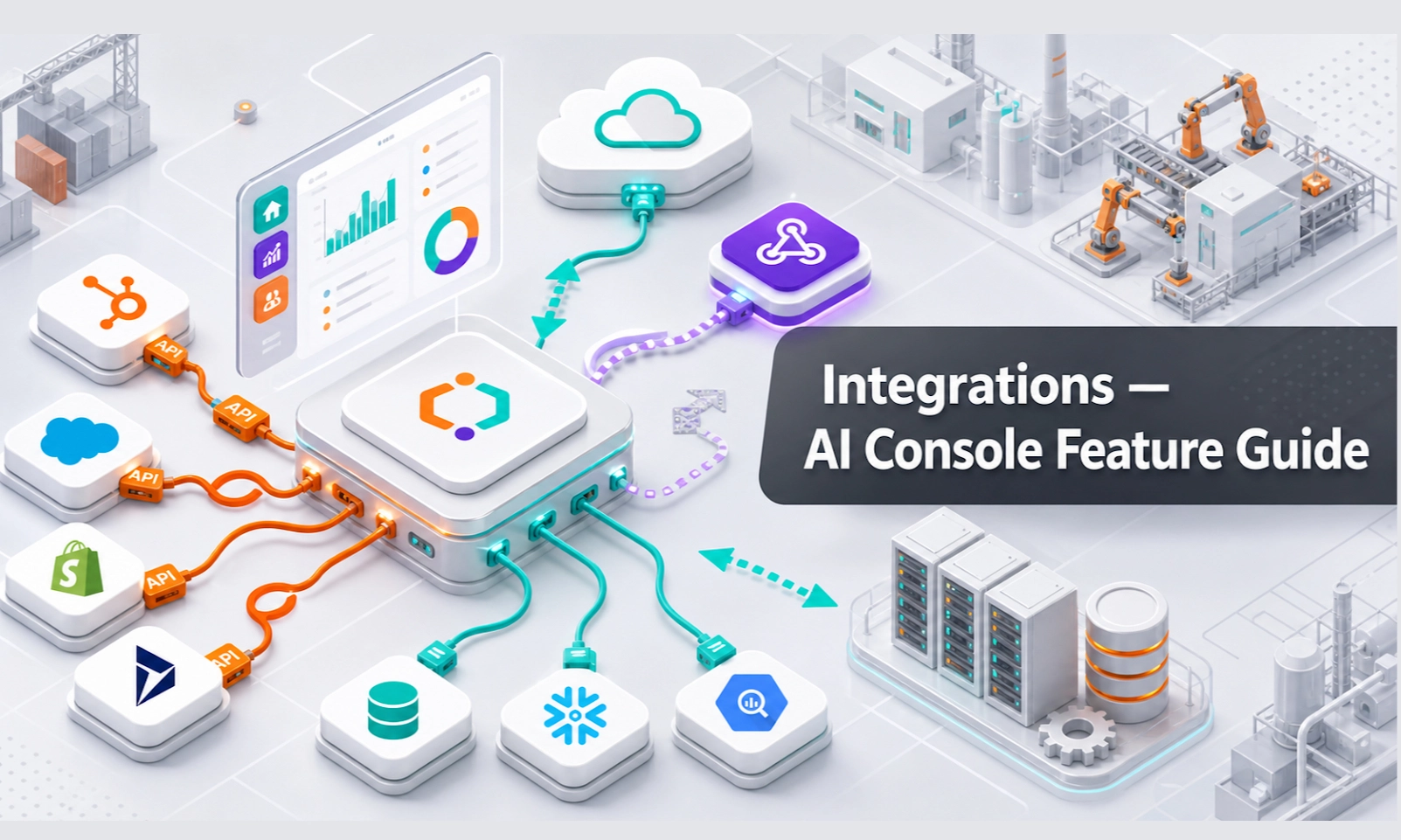
Integrations connect the AI Agent to external channels and tools. Without integrations, the AI may be trained inside the console but not available where customers actually ask questions.
For an AI webstore or equipment business, common integrations may include a website chat widget, WhatsApp, CRM, ERP, inventory system, lead routing tool, or internal notification channel.
Who should use this feature
Use Integrations if you are an account owner, admin, implementation lead, IT support user, sales operations user, or manager responsible for connecting the AI Agent to live business channels.
When to use it
Use Integrations after Agent Setup, Knowledge Base, Inventory, and Playground testing are ready. Do not connect the AI Agent to a live customer channel before testing the main workflows.
Before you start
Prepare the information needed for connection. Depending on the integration, you may need:
- website access
- webstore admin access
- WhatsApp or channel account access
- CRM or ERP credentials
- API key or integration token
- webhook URL
- team member responsible for approvals
- test customer account or test page
- clear launch date
Step-by-step guide
- Open Integrations from the console menu.
- Choose the channel or system you want to connect.
- Review the requirements for that integration.
- Add the required credentials, connection details, or installation code if requested.
- Save or connect the integration.
- Check whether the status shows as connected, active, or ready.
- Send a test message from the connected channel.
- Confirm that the conversation appears in Conversations.
- Confirm that leads are created correctly in Leads if the test should become a lead.
- Test handover rules before announcing the AI Agent to customers.
Recommended launch order
Start with one channel first. For most subscribers, the best first channel is the website or webstore chat because it is easier to test and monitor. Add WhatsApp, CRM, ERP, or more advanced integrations after the core AI workflow is stable.
What good looks like
A good integration makes the AI Agent available to customers while keeping your team in control.
Good signs include:
- integration status is active
- test messages appear in Conversations
- lead capture works correctly
- handover rules still work after connection
- customer source channel is visible
- your team knows who handles follow-up from each channel
Example workflow
Your company connects the AI Agent to the webstore chat widget. A customer asks about renting an air compressor. The AI collects the requirement and contact details. The conversation appears in Conversations, a lead appears in Leads, and the sales team follows up.
Common problems and what to check
The integration does not connect. Check login permissions, API keys, tokens, installation code, and whether the account has admin access.
Messages do not appear in Conversations. Check whether the channel is active and whether the correct agent is connected.
Leads are not created. Check lead capture settings, scenario rules, and whether the AI collected contact details.
The AI works in Playground but not on the live channel. Check whether the latest agent version is connected to the integration.
Customers contact the AI outside business hours. Review Agent Setup and handover instructions for after-hours behaviour.
Best practices
Do not launch every integration at once. Test one channel, monitor it, fix issues, then expand. Keep a simple launch checklist and assign one person to monitor Conversations closely during the first few days after launch.
Done checklist
- The AI Agent has been tested before live connection.
- The required access or credentials are ready.
- The integration status is active.
- Test messages appear in Conversations.
- Leads and handovers work correctly.
- A team member is assigned to monitor early live conversations.
Next recommended guide
Continue with User Activities to monitor how the AI Agent and team are being used after launch.